Automated installation of Windows 7 in KVM
Automated installation of Windows 7 in KVM
Original post from linux.xvx.cz
Sometimes I need to test/work with Windows 7 in my libvirt/KVM virtualization. Because the testing can be destructive I decided to automate it as much as possible. As a Linux user there are not many options to modify an ISO image and create a fully unattended installation, because I need the “windows only” tools for that. I also don’t want to use unattended configs shared by SAMBA, because it looks too complex for one VM.
Anyway here is the description of the solution for how I’m “fighting” with the automated Windows installation in the Virtual Machine manager.
Here are the screenshots from the VirtManager:
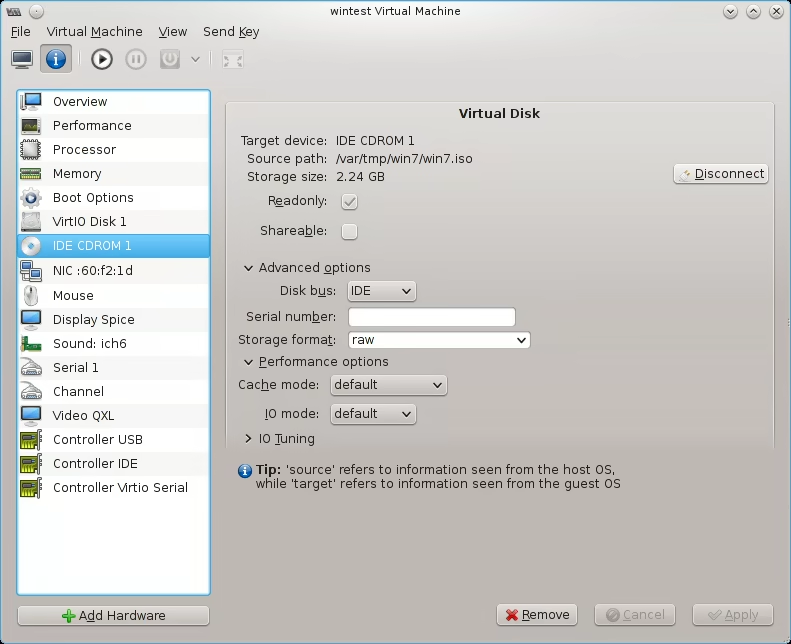
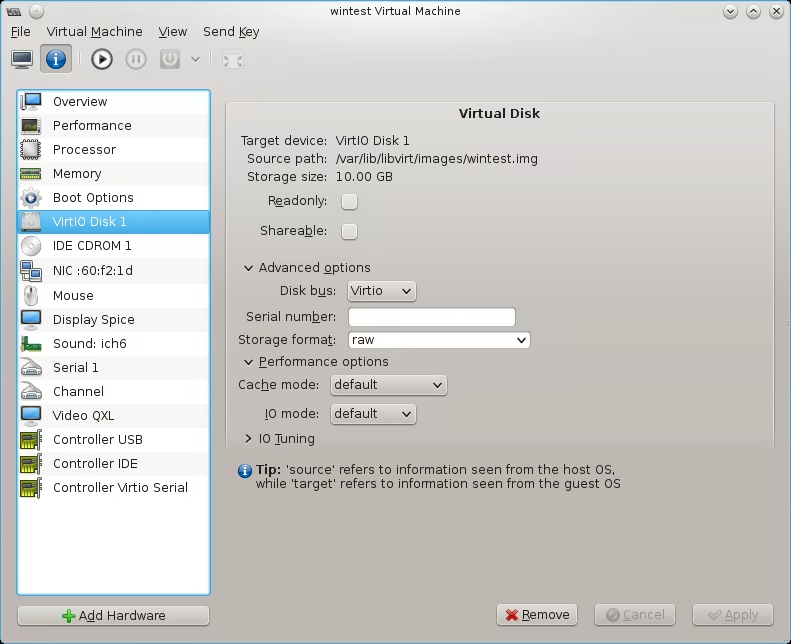
As you can see above I decided to use VirtIO for disk access to get the best performance. In such a case I’ll need the Windows VirtIO Drivers otherwise the disk is not going to be visible.
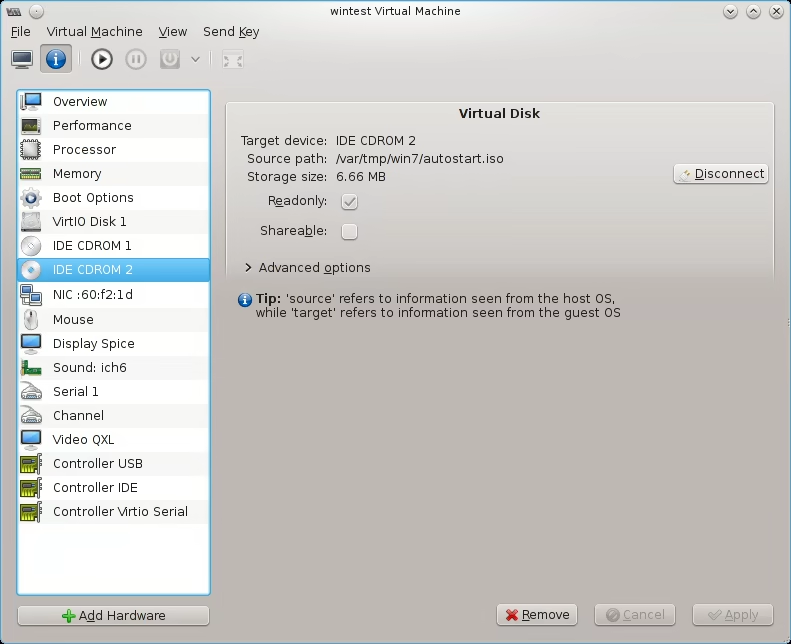
I decided to create my own iso image which I used as the second CD-ROM drive. This has two advantages - I can put there the VirtIO drivers and the autostart.bat script which needs to be executed manually after first boot.
Here is a short script to create such an ISO:
1
2
3
4
5
6
7
8
9
10
11
12
13
14
15
16
17
18
19
20
21
22
23
24
25
26
27
28
29
30
31
#!/bin/bash -x

URL="http://alt.fedoraproject.org/pub/alt/virtio-win/latest/images/bin/virtio-win-0.1-65.iso"
ISO=$(basename "$URL")

sudo rm autostart.iso
wget --continue "$URL"

sudo mount -o loop "./$ISO" /mnt/iso

mkdir -v cd
#32 bit
cp -v /mnt/iso/win7/x86/* "$PWD/cd/"
#64 bit
#cp -v -r /mnt/iso/win7/amd64/* "$PWD/cd/"

cat > "$PWD/cd/autorun.bat" << \EOF
:: Tested on Windows Win7

powershell -command "$client = new-object System.Net.WebClient; $client.DownloadFile(\"https://gist.github.com/ruzickap/7395426/raw/win7-admin.bat\", \"c:\win7-admin.bat\")"
powershell -command "$client = new-object System.Net.WebClient; $client.DownloadFile(\"https://gist.github.com/ruzickap/7395075/raw/win7-user.bat\", \"c:\win7-user.bat\")"

c:\win7-user.bat
EOF

chmod 644 "$PWD/cd/"*
genisoimage -v -V AUTOSTART -J -r -o autostart.iso cd/*

sudo umount /mnt/iso
rm -rvf "$PWD/cd"
rm "$ISO"
Another screenshot showing the second CD-ROM with the autostart.iso:
Once the installation of the Windows 7 is completed you should run the autostart.bat using the “Run as administrator” option.
It will download the win7-admin.bat and download+run win7-user.bat.
You can see the content of the win7-user.bat here:
1
2
3
4
5
6
7
8
9
10
11
12
13
14
15
16
17
18
19
20
21
22
23
24
25
26
27
28
29
30
31
32
33
34
35
36
37
38
39
40
41
42
43
44
45
46
47
48
49
50
51
52
53
54
55
56
57
58
59
60
61
62
63
64
65
66
67
68
69
70
71
72
73
74
75
76
77
78
79
80
81
82
83
84
85
86
87
88
89
90
91
92
93
94
95
96
97
98
99
100
101
102
103
104
105
106
107
108
109
110
111
112
113
114
115
116
117
118
119
120
:: Tested on Windows 7

echo on

rem for /f "tokens=3" %%i in ('netsh interface ip show addresses "Local Area Connection" ^|findstr IP.Address') do set IP=%%i
rem for /f "tokens=2 delims=. " %%j in ('nslookup %IP% ^|find "Name:"') do set HOSTNAME=%%j


@echo.
@echo Enable Administrator
net user administrator /active:yes


@echo.
@echo Change password and Password Complexity to allow simple passwords
net accounts /maxpwage:unlimited
net accounts /minpwlen:0
secedit /export /cfg c:\password.cfg
powershell -command "${c:\password.cfg}=${c:\password.cfg} | %% {$_.Replace('PasswordComplexity = 1', 'PasswordComplexity = 0')}"
secedit /configure /db %windir%\security\new.sdb /cfg c:\password.cfg /areas SECURITYPOLICY
del c:\password.cfg
net user Administrator xxxx


@echo.
@echo Autologin
rem reg add "HKLM\SOFTWARE\Microsoft\Windows NT\CurrentVersion\Winlogon" /v AutoAdminLogon /t REG_SZ /d "1" /f
reg add "HKLM\SOFTWARE\Microsoft\Windows NT\CurrentVersion\Winlogon" /v DefaultUserName /t REG_SZ /d "Administrator" /f
reg add "HKLM\SOFTWARE\Microsoft\Windows NT\CurrentVersion\Winlogon" /v DefaultPassword /t REG_SZ /d "xxxx" /f


@echo.
@echo Enable Remote Desktop
reg ADD "HKLM\SYSTEM\CurrentControlSet\Control\Terminal Server" /v fDenyTSConnections /t REG_DWORD /d 0 /f


@echo.
@echo Set proxy settings
reg add "HKLM\SOFTWARE\Microsoft\Windows\CurrentVersion\Internet Settings" /v MigrateProxy /t REG_DWORD /d 0x1 /f
reg add "HKLM\SOFTWARE\Microsoft\Windows\CurrentVersion\Internet Settings" /v ProxyServer /t REG_SZ /d "http=proxy.example.com:3128;https=proxy.example.com:3128;ftp=proxy.example.com:3128;socks=proxy.example.com:3128;" /f
reg add "HKLM\SOFTWARE\Microsoft\Windows\CurrentVersion\Internet Settings" /v ProxyOverride /t REG_SZ /d ^<local^>; /f
reg add "HKLM\Software\Policies\Microsoft\Windows\CurrentVersion\Internet Settings" /v ProxySettingsPerUser /t REG_DWORD /d 0x0 /f


@echo.
@echo Creating bat script running on start to check if the proxy server is available or not.
echo @echo off ^

ping -n 3 proxy.example.com ^

if %%ERRORLEVEL%% EQU 0 ( ^

  @echo. ^

  @echo *** Setting proxy ^

  reg add "HKLM\SOFTWARE\Microsoft\Windows\CurrentVersion\Internet Settings" /v ProxyEnable /t REG_DWORD /d 0x1 /f ^

) else ( ^

  @echo. ^

  @echo *** Proxy disabled ^

) ^

> "%ProgramData%\Microsoft\Windows\Start Menu\Programs\Startup\proxy.bat"

start /MIN "%ProgramData%\Microsoft\Windows\Start Menu\Programs\Startup\proxy.bat"


@echo.
@echo Configure NTP server
w32tm /config /manualpeerlist:"ntp.cesnet.cz" /reliable:yes /update
net start w32time
rem w32tm /resync /rediscover
rem w32tm /query /peers
rem w32tm /query /status


@echo.
@echo Disable firewall
netsh advfirewall set allprofiles state off


@echo.
@echo Change TimeZone
tzutil /s "Central Europe Standard Time"


@echo.
@echo Disable IPv6
reg add hklm\system\currentcontrolset\services\tcpip6\parameters /v DisabledComponents /t REG_DWORD /d 255


@echo.
@echo Disable firewall
netsh advfirewall set allprofiles state off


rem @echo.
rem @echo Server name change
rem powershell -command "$sysInfo = Get-WmiObject -Class Win32_ComputerSystem; $sysInfo.Rename('%HOSTNAME%');"


@echo.
@echo Run IE to get proxy settings working properly (workaround for proxy settings)
start /d "%PROGRAMFILES%\Internet Explorer" iexplore.exe www.google.com


@echo.
@echo Disable Windows Update
reg add "HKLM\SOFTWARE\Microsoft\Windows\CurrentVersion\WindowsUpdate\Auto Update" /v AUOptions /t REG_DWORD /d 1 /f
reg add "HKLM\SOFTWARE\Microsoft\Windows\CurrentVersion\WindowsUpdate\Auto Update" /v AUState /t REG_DWORD /d 7 /f


ping -n 3 127.0.0.1 > nul

shutdown /r /t 0
move c:\win7-user.bat c:\windows\temp\
After the restart you should login as Administrator (with password xxxx) and complete installation by running win7-admin.bat shown here:
1
2
3
4
5
6
7
8
9
10
11
12
13
14
15
16
17
18
19
20
21
22
23
24
25
26
27
28
29
30
31
32
33
34
35
36
37
38
39
40
41
42
43
44
45
46
47
48
49
50
51
52
53
54
55
56
57
58
59
60
61
62
63
64
65
66
67
68
69
70
71
72
73
74
75
76
77
78
79
80
81
82
83
84
85
86
87
88
89
90
91
92
93
94
95
96
97
98
99
100
101
102
103
104
105
106
107
108
109
110
111
112
113
114
115
116
117
118
119
120
121
122
123
124
125
126
127
128
129
130
131
132
133
134
135
136
137
138
139
140
141
142
143
144
145
146
147
148
149
150
151
152
153
154
155
156
157
158
159
160
161
:: Tested on Windows 7


@echo.
@echo Test connection settings
powershell -command "$client = new-object System.Net.WebClient; $client.DownloadFile('http://www.google.com', 'c:\del')"
if %ERRORLEVEL% NEQ 0 (
  @echo Can not download files form Internet !!!
  pause
  exit
)
del c:\del


@echo.
@echo Import certificates to skip "Would you like to install this device software" prompt when installing Spice Guest Tools
:: http://edennelson.blogspot.cz/2013/02/deploying-openvpn.html
powershell -command "$client = new-object System.Net.WebClient; $client.DownloadFile('http://zeenix.fedorapeople.org/drivers/win-tools/postinst/redhat10.cer', 'c:\redhat.cer')"
certutil -addstore "TrustedPublisher" c:\redhat.cer
del c:\redhat.cer
powershell -command "$client = new-object System.Net.WebClient; $client.DownloadFile('http://zeenix.fedorapeople.org/drivers/win-tools/postinst/redhat09.cer', 'c:\redhat.cer')"
certutil -addstore "TrustedPublisher" c:\redhat.cer
del c:\redhat.cer


@echo.
@echo Change IE homepage + disable Tour + disable Check Associations + disable First Home Page + disable OOBE + disable Server Manager
reg add "HKEY_CURRENT_USER\Software\Microsoft\Internet Explorer\Main" /v "Start Page" /d "https://google.com" /f
reg add "HKCU\Software\Microsoft\Internet Explorer\Main" /v "Default_Page_URL" /d "https://google.com" /f
reg add "HKCU\Software\Microsoft\Internet Explorer\Main" /v "DisableFirstRunCustomize" /t REG_DWORD /d 1 /f
reg add "HKEY_CURRENT_USER\Software\Microsoft\Internet Explorer\Main" /v "Check_Associations" /d "no" /f
reg add "HKCU\Software\Microsoft\Internet Explorer\Main" /v "NoProtectedModeBanner" /t REG_DWORD /d 1 /f
reg add "HKEY_LOCAL_MACHINE\SOFTWARE\Microsoft\ServerManager\Oobe" /v "DoNotOpenInitialConfigurationTasksAtLogon" /t REG_DWORD /d 1 /f
reg add "HKEY_LOCAL_MACHINE\SOFTWARE\Microsoft\ServerManager" /v "DoNotOpenServerManagerAtLogon" /t REG_DWORD /d 1 /f
reg add "HKEY_LOCAL_MACHINE\SOFTWARE\Microsoft\Internet Explorer\MAIN\ESCHomePages" /v "SoftAdmin" /d "https://google.com" /f


@echo.
@echo Disable "Check whether IE is the default browser?"
reg add "HKLM\SOFTWARE\Microsoft\Active Setup\Installed Components\{A509B1A7-37EF-4b3f-8CFC-4F3A74704073}" /v IsInstalled /t REG_DWORD /d 00000000 /f


@echo.
@echo Download and install 7-Zip
powershell -command "$client = new-object System.Net.WebClient; $client.DownloadFile('http://switch.dl.sourceforge.net/project/sevenzip/7-Zip/9.20/7z920.msi', 'c:\7z.msi')"
msiexec /i c:\7z.msi /qn
del /f c:\7z.msi


@echo.
@echo Download SSH Server
powershell -command "$client = new-object System.Net.WebClient; $client.DownloadFile('https://www.itefix.no/i2/sites/default/files/Copssh_3.1.4_Installer.zip', 'c:\Copssh_Installer.zip')"
"%PROGRAMFILES%\7-Zip\7z.exe" x -oc:\ c:\Copssh_Installer.zip
c:\Copssh_3.1.4_Installer.exe /u=root /p=xxxx /S
del /f c:\Copssh_3.1.4_Installer.exe c:\Copssh_Installer.zip

echo ssh-rsa xxxxxxxxxxxxxxxxxxxxxxxxxxxxxxxxxxxxx ruzickap@peru >> "%PROGRAMFILES%\ICW\home\Administrator\.ssh\authorized_keys"

(
  echo -----BEGIN RSA PRIVATE KEY----- & REM gitleaks:allow
  echo xxxxxxxxxxxxxxxxxxxxxxxxxxxxxxxxxxxxxxxxxxxxxxxxxxxxxxxxxxxxxxxx
  echo -----END RSA PRIVATE KEY-----
)  > "%PROGRAMFILES%\ICW\home\Administrator\.ssh\id_rsa"

(
  echo Host *
  echo UserKnownHostsFile /dev/null
  echo StrictHostKeyChecking no
  echo User root
) > "%PROGRAMFILES%\ICW\home\Administrator\.ssh\config"


@echo.
@echo Download an install WinSCP
powershell -command "$client = new-object System.Net.WebClient; $client.DownloadFile('http://garr.dl.sourceforge.net/project/winscp/WinSCP/5.1.7/winscp517setup.exe', 'c:\winscpsetup.exe')"
c:\winscpsetup.exe /silent /sp
del /f c:\winscpsetup.exe
reg add "HKEY_CURRENT_USER\Software\Martin Prikryl\WinSCP 2\Sessions\Default%20Settings" /v "HostName" /t REG_SZ /d "192.168.122.1" /f
reg add "HKEY_CURRENT_USER\Software\Martin Prikryl\WinSCP 2\Sessions\Default%20Settings" /v "UserName" /t REG_SZ /d "ruzickap" /f


@echo.
@echo Download an install Double Commander
powershell -command "$client = new-object System.Net.WebClient; $client.DownloadFile('http://optimate.dl.sourceforge.net/project/doublecmd/DC%%20for%%20Windows%%2032%%20bit/Double%%20Commander%%200.5.6%%20beta/doublecmd-0.5.6.i386-win32.exe', 'c:\doublecmd.exe')"
c:\doublecmd.exe /sp /silent /MERGETASKS="desktopicon"
del /f c:\doublecmd.exe


@echo Download Putty
powershell -command "$client = new-object System.Net.WebClient; $client.DownloadFile('http://the.earth.li/~sgtatham/putty/latest/x86/putty-0.63-installer.exe', 'c:\putty-installer.exe')"
c:\putty-installer.exe /silent /sp /MERGETASKS="desktopicon"
del /f c:\putty-installer.exe


@echo.
@echo Download and install Firefox
powershell -command "$client = new-object System.Net.WebClient; $client.DownloadFile('http://download.cdn.mozilla.net/pub/mozilla.org/firefox/releases/23.0.1/win32/en-US/Firefox%%20Setup%%2023.0.1.exe', 'c:\Firefox_Setup.exe')"
c:\Firefox_Setup.exe -ms
del /f c:\Firefox_Setup.exe


@echo.
@echo Download Notepad++
powershell -command "$client = new-object System.Net.WebClient; $client.DownloadFile('http://download.tuxfamily.org/notepadplus/6.4.1/npp.6.4.1.Installer.exe', 'c:\npp.Installer.exe')"
c:\npp.Installer.exe /S
del /f c:\npp.Installer.exe


@echo.
@echo Download and install Spice
powershell -command "$client = new-object System.Net.WebClient; $client.DownloadFile('http://spice-space.org/download/windows/spice-guest-tools/spice-guest-tools-0.59.exe', 'c:\spice-guest-tools.exe')"
c:\spice-guest-tools.exe /S
del /f c:\spice-guest-tools.exe


@echo.
@echo Download and install JRE
rem powershell -command "$client = new-object System.Net.WebClient; $client.DownloadFile('http://download.kb.cz/jre-7u45-windows-i586.exe', 'c:\jre-windows.exe')"
powershell -command "$client = new-object System.Net.WebClient; $client.DownloadFile('http://javadl.sun.com/webapps/download/AutoDL?BundleId=81819', 'c:\jre-windows.exe')"
c:\jre-windows.exe /s
del /f c:\jre-windows.exe


@echo.
@echo Download and install DesktopInfo
powershell -command "$client = new-object System.Net.WebClient; $client.DownloadFile('http://www.glenn.delahoy.com/software/files/DesktopInfo120.zip', 'c:\DesktopInfo.zip')"
"%PROGRAMFILES%\7-Zip\7z.exe" x -o"%PROGRAMFILES%\DesktopInfo" c:\DesktopInfo.zip
del c:\DesktopInfo.zip
reg add "HKCU\Software\Microsoft\Windows\CurrentVersion\Run" /v DesktopInfo /t reg_sz /d "%PROGRAMFILES%\DesktopInfo\DesktopInfo.exe" /f


@echo.
@echo Disable Hibernate
powercfg -h off


@echo.
@echo Disable piracy warning
start SLMGR -REARM


@echo.
@echo Change pagefile size
wmic.exe computersystem set AutomaticManagedPagefile=False
wmic pagefileset where name="C:\\pagefile.sys" set InitialSize=512,MaximumSize=512
wmic pagefileset list /format:list


@echo.
@echo Clean mess
cleanmgr /sagerun:11


@echo.
@echo Compact all files
compact /c /s /i /q > NUL

pause

shutdown /r /t 0
move c:\win7-admin.bat c:\windows\temp\
Feel free to see the whole installation procedure on this video (some parts are accelerated):
:-)